> ## Documentation Index
> Fetch the complete documentation index at: https://mintlify-docs-automation-github-pr-review.mintlify.site/llms.txt
> Use this file to discover all available pages before exploring further.
# 上下文菜单
> 为你的文档添加上下文菜单,一键集成 ChatGPT、Claude、Perplexity、Google AI Studio 等 AI 工具。
export const PreviewButton = ({children, href}) => {
return
{children}
;
};
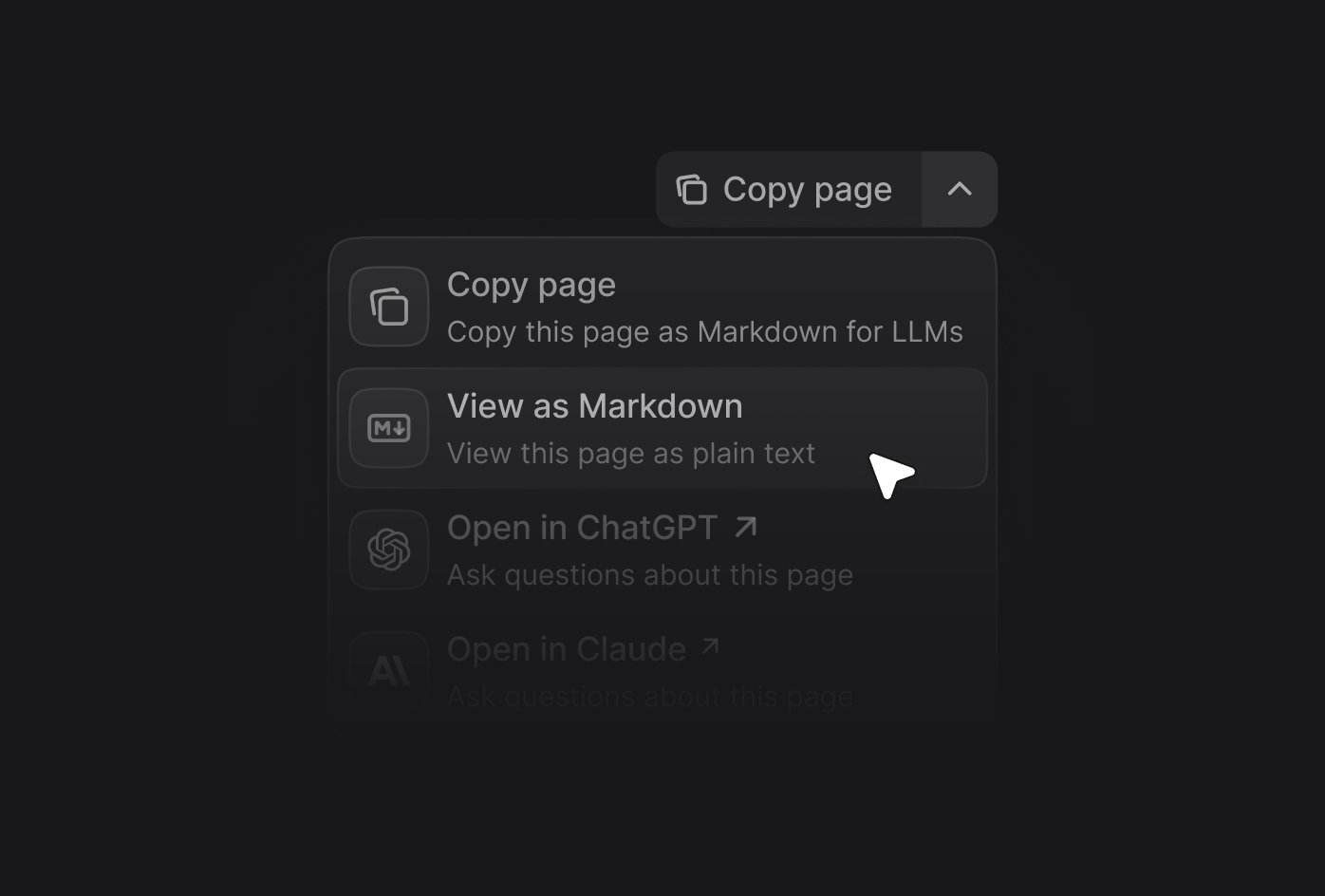
上下文菜单可快速访问经 AI 优化的内容,以及与主流 AI 工具的直接集成。用户在任意页面打开上下文菜单时,可以将内容复制为 AI 工具的 context,或在 ChatGPT、Claude、Perplexity、Google AI Studio、Grok、Devin、Devin Desktop,或你自定义的工具中直接开启对话,并自动加载你的文档作为 context。
将上下文菜单与你托管的 [`skill.md`](/zh/ai/skillmd) 文件以及 [MCP 服务器](/zh/ai/model-context-protocol)结合使用,让用户能将你产品的全部能力安装到他们的 AI 工具中,而不只是他们正在阅读的那一页。
上下文菜单包含多个预构建选项,你可以通过将其标识符添加到配置中来启用。
| Option | Identifier | Description |
| :------------------------- | :-------------- | :---------------------------------------------------- |
| **复制页面** | `copy` | 将当前页面复制为 Markdown,以便作为 context 粘贴到 AI 工具中 |
| **以 Markdown 查看** | `view` | 以 Markdown 打开当前页面 |
| **询问助手** | `assistant` | 使用当前页面作为 context 打开 [assistant](/zh/assistant/index) |
| **在 ChatGPT 中打开** | `chatgpt` | 使用当前页面作为 context 创建一个 ChatGPT 对话 |
| **在 Claude 中打开** | `claude` | 使用当前页面作为 context 创建一个 Claude 对话 |
| **在 Perplexity 中打开** | `perplexity` | 使用当前页面作为 context 创建一个 Perplexity 对话 |
| **在 Grok 中打开** | `grok` | 使用当前页面作为 context 创建一个 Grok 对话 |
| **在 Google AI Studio 中打开** | `aistudio` | 使用当前页面作为 context 创建一个 Google AI Studio 对话 |
| **在 Devin 中打开** | `devin` | 使用当前页面作为 context 创建一个 Devin 会话 |
| **在 Devin Desktop 中打开** | `devin-desktop` | 使用当前页面作为 context 打开 Devin Desktop。需要安装 Devin Desktop。 |
| **复制 MCP 服务器 URL** | `mcp` | 将你的 MCP 服务器 URL 复制到剪贴板 |
| **复制 MCP 安装命令** | `add-mcp` | 复制用于安装 MCP 服务器的 `npx add-mcp` 命令 |
| **连接到 Cursor** | `cursor` | 在 Cursor 中安装你托管的 MCP 服务器 |
| **连接到 VS Code** | `vscode` | 在 VS Code 中安装你托管的 MCP 服务器 |
| **连接到 Devin** | `devin-mcp` | 在 Devin 中安装你托管的 MCP 服务器 |
| **下载 PDF** | `download-pdf` | 将当前页面下载为 PDF |
| **自定义选项** | Object | 向上下文菜单添加自定义选项 |
 在你的 `docs.json` 文件中添加 `contextual` 字段,并指定要包含的选项。
```json theme={null}
{
"contextual": {
"options": [
"copy",
"view",
"assistant",
"chatgpt",
"claude",
"perplexity",
"grok",
"aistudio",
"devin",
"devin-desktop",
"mcp",
"cursor",
"vscode",
"devin-mcp",
"download-pdf"
]
}
}
```
在你的 `docs.json` 文件中添加 `contextual` 字段,并指定要包含的选项。
```json theme={null}
{
"contextual": {
"options": [
"copy",
"view",
"assistant",
"chatgpt",
"claude",
"perplexity",
"grok",
"aistudio",
"devin",
"devin-desktop",
"mcp",
"cursor",
"vscode",
"devin-mcp",
"download-pdf"
]
}
}
```
## 显示位置
默认情况下,上下文菜单显示在页面页眉中。你也可以使用 `display` 选项,将其配置为显示在目录侧边栏中。
```json theme={null}
{
"contextual": {
"options": ["copy", "view", "chatgpt", "claude"],
"display": "toc"
}
}
```
| 值 | 说明 |
| :------- | :-------------------- |
| `header` | 在页面顶部的上下文菜单中显示选项 (默认) |
| `toc` | 在目录侧边栏中显示选项 |
## 添加自定义选项
通过向 `options` 数组添加一个对象,在上下文菜单中创建自定义选项。每个自定义选项需要包含以下属性:
选项的标题。
选项的说明。当上下文菜单展开时显示于标题下方。
要显示的图标。
可选值:
* 如果在 `docs.json` 中将 `icons.library` [属性](/zh/organize/settings#param-icons) 设置为 `fontawesome`,则为 [Font Awesome 图标](https://fontawesome.com/icons) 的名称
* 如果在 `docs.json` 中将 `icons.library` [属性](/zh/organize/settings#param-icons) 设置为 `lucide`,则为 [Lucide 图标](https://lucide.dev/icons) 的名称
* 如果在 `docs.json` 中将 `icons.library` [属性](/zh/organize/settings#param-icons) 设置为 `tabler`,则为 [Tabler 图标](https://tabler.io/icons) 的名称
* 指向外部托管图标的 URL
* 项目中图标文件的路径
[Font Awesome](https://fontawesome.com/icons) 的图标样式。仅在使用 Font Awesome 图标时有效。
可选值:`regular`、`solid`、`light`、`thin`、`sharp-solid`、`duotone`、`brands`。
选项的 href。简单链接使用字符串,带有 query 参数的动态链接使用对象。
选项的基础 URL。
选项的 query 参数。
query 参数的 key。
query 参数的值。Mintlify 会将以下占位符替换为对应的值:
* 使用 `$page` 插入当前页面内容 (Markdown 格式) 。
* 使用 `$path` 插入当前页面路径。
* 使用 `$mcp` 插入托管的 MCP 服务器 URL。
自定义选项示例:
```json {9-14} wrap theme={null}
{
"contextual": {
"options": [
"copy",
"view",
"chatgpt",
"claude",
"perplexity",
{
"title": "功能请求",
"description": "在 GitHub 上参与讨论,请求新功能",
"icon": "plus",
"href": "https://github.com/orgs/mintlify/discussions/categories/feature-requests"
}
]
}
}
```
### 自定义选项示例
```json theme={null}
{
"title": "请求新功能",
"description": "在 GitHub 上参与讨论",
"icon": "plus",
"href": "https://github.com/orgs/mintlify/discussions/categories/feature-requests"
}
```
```json theme={null}
{
"title": "在 X 上分享",
"description": "将此页面分享至 X",
"icon": "x",
"href": {
"base": "https://x.com/intent/tweet",
"query": [
{
"key": "text",
"value": "查看这份文档:$page"
}
]
}
}
```