> ## Documentation Index
> Fetch the complete documentation index at: https://mintlify-docs-automation-github-pr-review.mintlify.site/llms.txt
> Use this file to discover all available pages before exploring further.
# 多仓库部署
> 将多个 Git 仓库中的文件合并到一个 Mintlify 站点,并为每个源仓库分配独立的 URL 路径。
多仓库部署在[企业版套餐](https://mintlify.com/pricing?ref=multi-repo)中可用。
当一个站点需要来自多个 Git 仓库的内容时,请使用多仓库部署。当你为同一个 Mintlify 项目配置多个仓库作为源时,每个仓库的内容都会有自己的 URL 路径。
例如,你可以将产品文档、API 参考和 SDK 指南的独立仓库合并到一个站点中:
```text theme={null}
docs.example.com/product
docs.example.com/api
docs.example.com/sdks
```
## 多仓库部署的工作原理
多仓库部署中的每个仓库都有各自的:
* Git 提供方连接
* 分支
* 可选的内容目录
* URL 路径
* `docs.json`
在部署期间,Mintlify 会读取每个仓库并将已配置的源合并到一个站点中。每个源会显示在其配置的 URL 路径下。
第一个配置的仓库的 `docs.json` 是部署的根 `docs.json`。其站点级配置控制合并后的站点,包括主题、颜色、Logo、集成、SEO 以及其他顶层字段等设置。其他源在其配置的 URL 路径下贡献各自的导航和内容。
多仓库部署不同于[monorepo 配置](/zh/deploy/monorepo)。当你将所有内容与源代码一起存放在单个仓库的子目录中时,请使用 monorepo 配置。当你将内容分散存放在不同的仓库中时,请使用多仓库部署。
## 要求
* 企业版套餐
* 你的 Mintlify 项目的管理员权限
* 每个源仓库中都必须有 `docs.json` 文件
* 所有源仓库必须使用相同的 Git 提供方(全部为 GitHub 或全部为 GitLab)。添加来自不同提供方的源会移除所有现有的另一类型的源
URL 路径必须唯一且不能重叠。例如,不要同时将一个源配置为 `/docs`,另一个源配置为 `/docs/api`。
## 配置多个仓库
在仪表板中前往 [Git 设置](https://app.mintlify.com/settings/deployment/git-settings)。
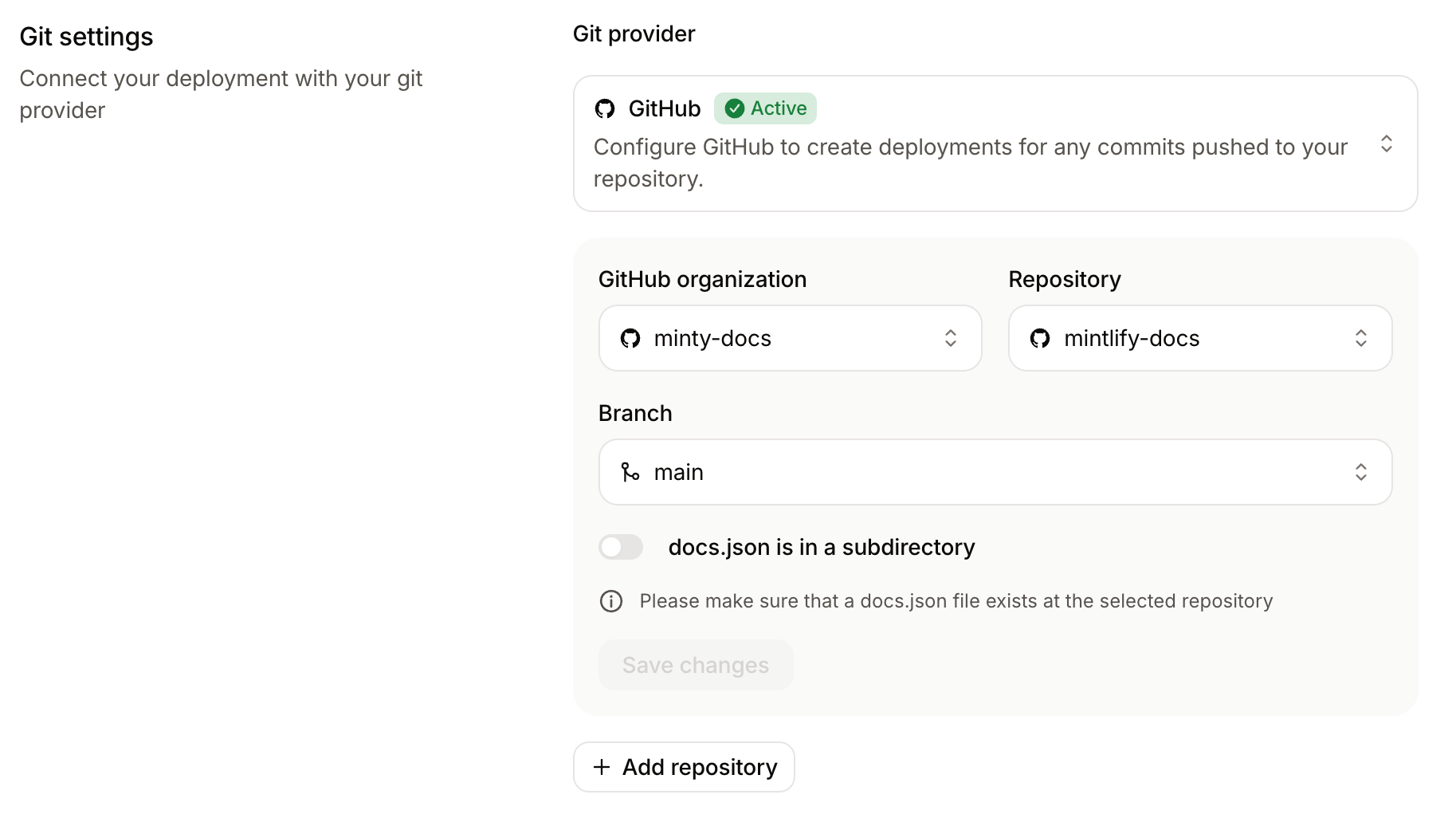
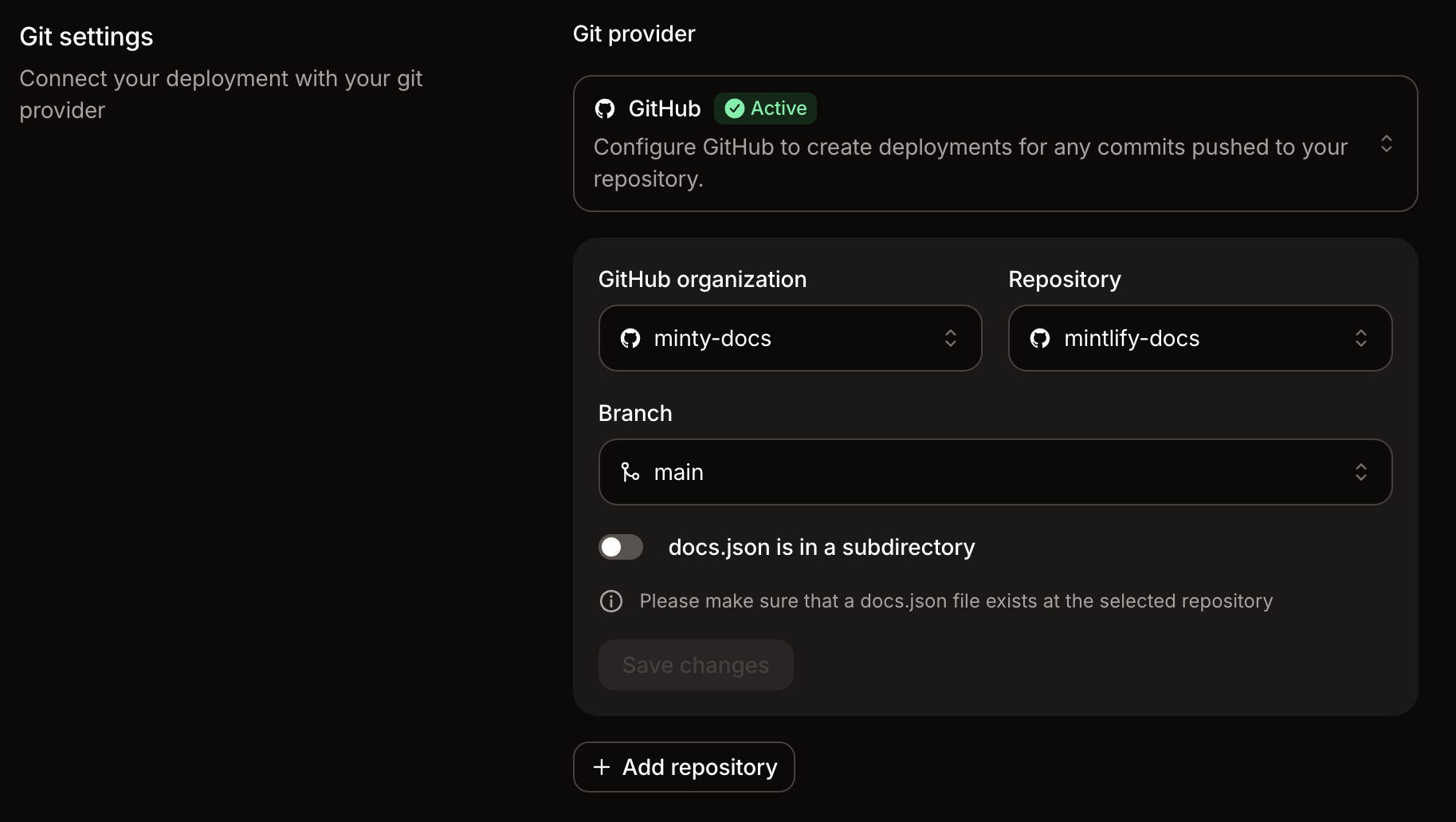 点击 **Add repository**。
选择仓库、分支以及所需的 Git 提供方特定字段(GitHub 或 GitLab)。
点击 **Add repository**。
选择仓库、分支以及所需的 Git 提供方特定字段(GitHub 或 GitLab)。
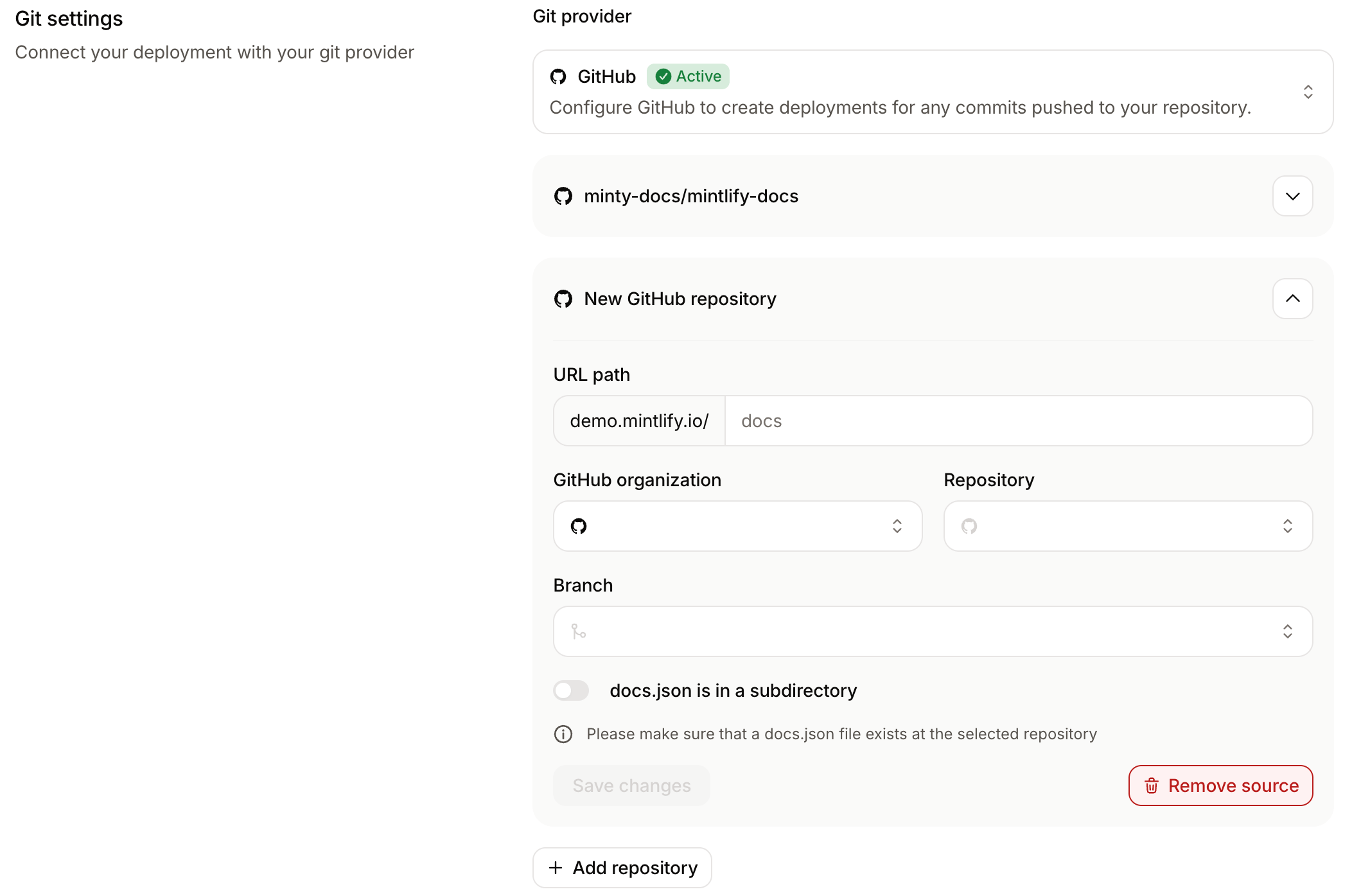
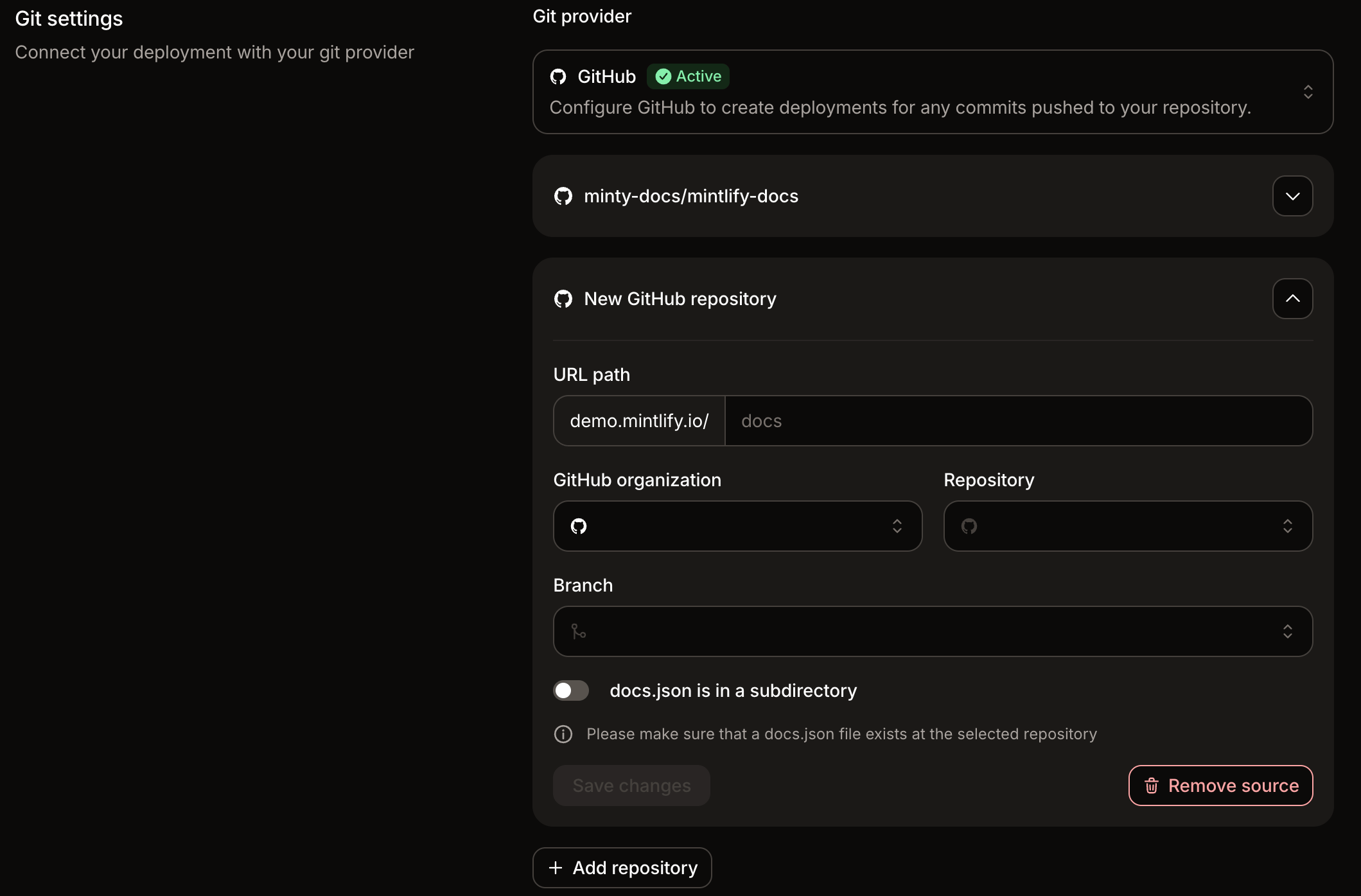 对于 GitHub 源,Mintlify GitHub App 必须能够访问该仓库。对于 GitLab 源,请提供项目 ID 以及具有 `read_repository` 权限的部署令牌。
如果仓库的 `docs.json` 位于子目录而非根目录中,请启用 **docs.json is in a subdirectory** 并输入指向该目录的路径。
为仓库源输入一个 **URL path**。
URL 路径决定了来自该仓库的内容在你的文档站点中显示的位置。例如,URL 路径为 `api` 时,内容会在 `docs.example.com/api` 下提供。
你可以使用或不使用前导斜杠输入路径。Mintlify 在保存时会自动规范化该值。
点击 **Save changes**。Mintlify 会保存配置,并将合并后的站点的部署排入队列。
对于 GitHub 源,Mintlify GitHub App 必须能够访问该仓库。对于 GitLab 源,请提供项目 ID 以及具有 `read_repository` 权限的部署令牌。
如果仓库的 `docs.json` 位于子目录而非根目录中,请启用 **docs.json is in a subdirectory** 并输入指向该目录的路径。
为仓库源输入一个 **URL path**。
URL 路径决定了来自该仓库的内容在你的文档站点中显示的位置。例如,URL 路径为 `api` 时,内容会在 `docs.example.com/api` 下提供。
你可以使用或不使用前导斜杠输入路径。Mintlify 在保存时会自动规范化该值。
点击 **Save changes**。Mintlify 会保存配置,并将合并后的站点的部署排入队列。
## 示例仓库布局
在此示例中,每个源都有自己的仓库以及自己的 `docs.json`。
```text theme={null}
acme/product-docs
├── docs.json
├── overview.mdx
└── guides/
acme/api-docs
├── docs.json
├── introduction.mdx
└── reference/
acme/sdk-docs
├── docs.json
├── quickstart.mdx
└── javascript/
```
为每个仓库配置一个 URL 路径:
| 仓库 | URL 路径 | 发布路径 |
| ------------------- | --------- | ---------- |
| `acme/product-docs` | `product` | `/product` |
| `acme/api-docs` | `api` | `/api` |
| `acme/sdk-docs` | `sdks` | `/sdks` |
## 导航行为
Mintlify 会将每个仓库的导航合并到一个站点导航中。每个仓库源都会成为配置的 URL 路径下的一个顶级产品分区。
每个产品分区的名称来自对应仓库的 `docs.json` 中的 `name` 字段。例如,如果某个仓库的 `docs.json` 设置了 `"name": "API Reference"`,则其产品分区会在合并后的导航中显示为 "API Reference"。
请将每个源的导航限定在其自身的仓库范围内。例如,API 仓库中的页面应仅引用位于 API 仓库中的文件,SDK 仓库中的页面应仅引用位于 SDK 仓库中的文件。
源仓库内部不支持嵌套的 `navigation.products` 配置。
## 移除仓库源
你可以从仪表板的 [Git 设置页面](https://app.mintlify.com/settings/deployment/git-settings)移除仓库源。当只剩一个仓库源时,Mintlify 会移除该源的 URL 路径,并将剩余的仓库作为部署的根源。