> ## Documentation Index
> Fetch the complete documentation index at: https://mintlify-docs-automation-github-pr-review.mintlify.site/llms.txt
> Use this file to discover all available pages before exploring further.

# 预览部署

> 为每个拉取请求获取唯一的预览 URL，让审阅者可以在实时环境中查看文档更改，然后再合并到生产环境。

预览部署可让你在合并到生产环境之前先查看文档更改的实际效果。每次预览都会生成一个可共享的 URL，并会在你推送新更改时自动更新。

预览 URL 默认对所有人可见。将预览链接分享给任何需要审阅你更改的人。

<div id="create-preview-deployments">
  ## 创建预览部署
</div>

预览部署会在拉取请求 (PR；亦称“合并请求”/Merge Request) 中自动创建，或可从你的控制台手动创建。

<div id="automatic-previews">
  ### 自动预览
</div>

<Note>
  仅针对目标为你的[部署用分支](/zh/guides/git-concepts#deployment-branch)的拉取请求 (PR) ，才会自动创建预览。
</Note>

当你创建拉取请求时，Mintlify 机器人会自动在拉取请求中添加一个链接，供你查看预览部署。每次你向该分支推送新的提交时，预览都会更新。

<Frame>
  <img src="https://mintcdn.com/mintlify-docs-automation-github-pr-review/QBTK2PGeDDpdhDBw/images/previews/preview-deployment-light.png?fit=max&auto=format&n=QBTK2PGeDDpdhDBw&q=85&s=79f5f4f0da1814e9c51490799bec3114" alt="在拉取请求时间线中查看部署的链接" className="block dark:hidden" width="1704" height="142" data-path="images/previews/preview-deployment-light.png" />

  <img src="https://mintcdn.com/mintlify-docs-automation-github-pr-review/QBTK2PGeDDpdhDBw/images/previews/preview-deployment-dark.png?fit=max&auto=format&n=QBTK2PGeDDpdhDBw&q=85&s=4639f11883aa7edd23735abc748898b5" alt="在拉取请求时间线中查看部署的链接" className="hidden dark:block" width="1704" height="142" data-path="images/previews/preview-deployment-dark.png" />
</Frame>

<div id="manual-previews">
  ### 手动预览
</div>

你可以为任意 branch 手动创建预览。

1. 前往你的[控制台](https://dashboard.mintlify.com/)。
2. 选择 **Previews**。
3. 选择 **Create custom preview**。
4. 输入要预览的 branch 名称。
5. 选择 **Create preview**。

<div id="api">
  ### API
</div>

你也可以使用 [Trigger preview deployment](/zh/api/preview/trigger) API 端点以编程方式创建预览部署。这对于将预览创建集成到 CI/CD 流水线或自定义工具中非常有用。

<div id="redeploy-a-preview">
  ## 重新部署预览
</div>

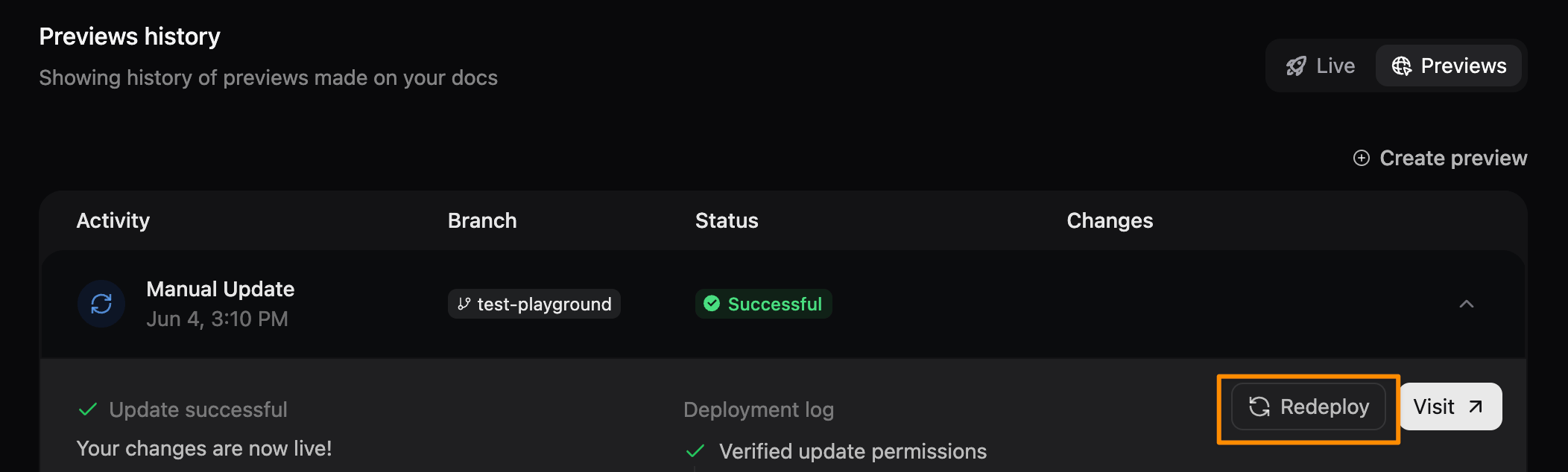
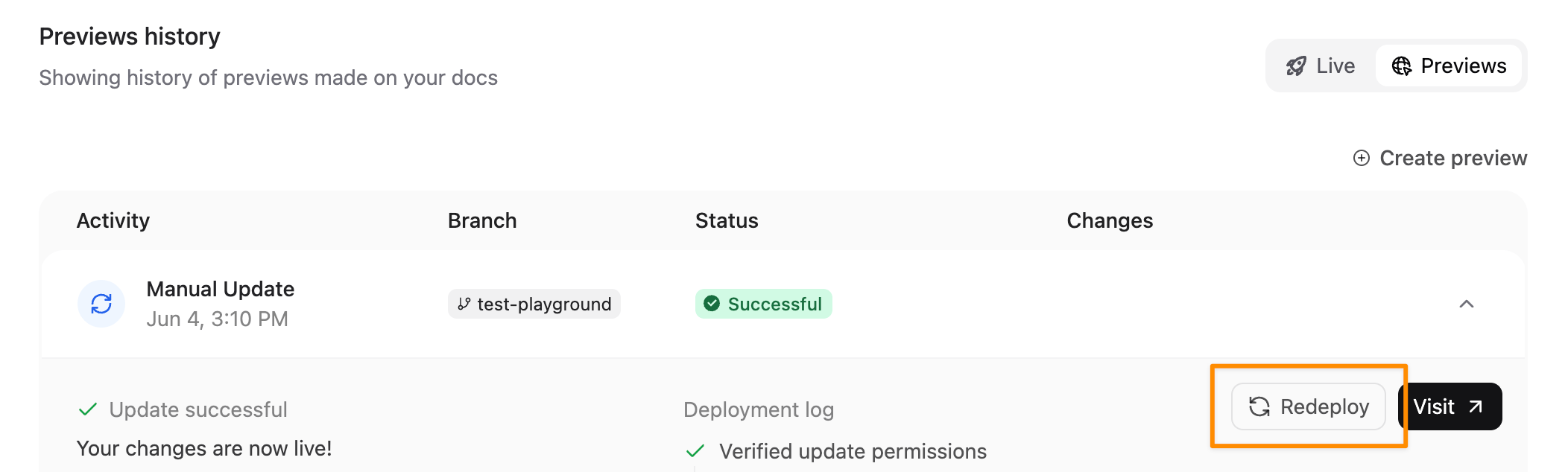
当需要刷新内容，或在部署失败后重试时，可重新部署预览。

1. 在你的[控制台](https://dashboard.mintlify.com/)中选择该预览。
2. 选择**重新部署**。
<Frame>
  <img src="https://mintcdn.com/mintlify-docs-automation-github-pr-review/QBTK2PGeDDpdhDBw/images/previews/redeploy-preview-light.png?fit=max&auto=format&n=QBTK2PGeDDpdhDBw&q=85&s=c88118a75c184863d196d42632c64212" alt="“预览”菜单中，部署按钮被橙色矩形高亮显示。" className="block dark:hidden" width="2104" height="634" data-path="images/previews/redeploy-preview-light.png" />

  <img src="https://mintcdn.com/mintlify-docs-automation-github-pr-review/QBTK2PGeDDpdhDBw/images/previews/redeploy-preview-dark.png?fit=max&auto=format&n=QBTK2PGeDDpdhDBw&q=85&s=c77c6bb0bfc8e29fe0d63ba641679c31" alt="“预览”菜单中，部署按钮被橙色矩形高亮显示。" className="hidden dark:block" width="2104" height="634" data-path="images/previews/redeploy-preview-dark.png" />
</Frame>

<div id="preview-widget">
  ## 预览小部件
</div>

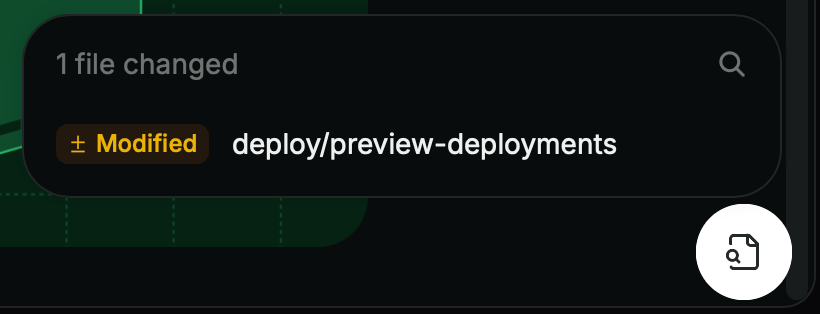
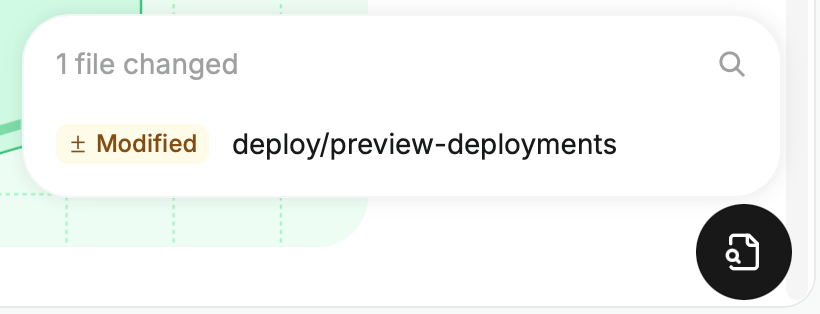
预览小部件会显示在预览部署中，帮助你浏览和审阅更新后的页面。该小部件以悬浮按钮的形式显示在预览部署页面的右下角。
<Frame>
  <img src="https://mintcdn.com/mintlify-docs-automation-github-pr-review/QBTK2PGeDDpdhDBw/images/previews/widget-light.png?fit=max&auto=format&n=QBTK2PGeDDpdhDBw&q=85&s=f3619196efa05df60ee5c277e84807cb" alt="展开的预览小部件，显示已更改文件列表。" className="block dark:hidden" width="820" height="314" data-path="images/previews/widget-light.png" />

  <img src="https://mintcdn.com/mintlify-docs-automation-github-pr-review/QBTK2PGeDDpdhDBw/images/previews/widget-dark.png?fit=max&auto=format&n=QBTK2PGeDDpdhDBw&q=85&s=6710faa5806f010b21f06d52a05866d3" alt="展开的预览小部件，显示已更改文件列表。" className="hidden dark:block" width="820" height="314" data-path="images/previews/widget-dark.png" />
</Frame>

1. 点击小部件，在预览中显示所有新增、修改或删除的文件。
2. 点击某个文件，在对应页面上查看更改内容。
3. 使用搜索栏筛选已更改文件列表。
4. 将鼠标悬停在文件上，点击**在编辑器中打开**图标，直接在网页编辑器中编辑该文件。

该小部件只会显示在预览部署中，不会显示在已上线站点或本地预览中。

<div id="restrict-access-to-preview-deployments">
  ## 限制预览部署的访问权限
</div>

默认情况下，任何持有 URL 的人都可以访问预览部署。你可以通过要求所有预览进行组织身份验证，或为单个预览设置密码保护来限制访问。

<div id="require-organization-authentication">
  ### 要求组织身份验证
</div>

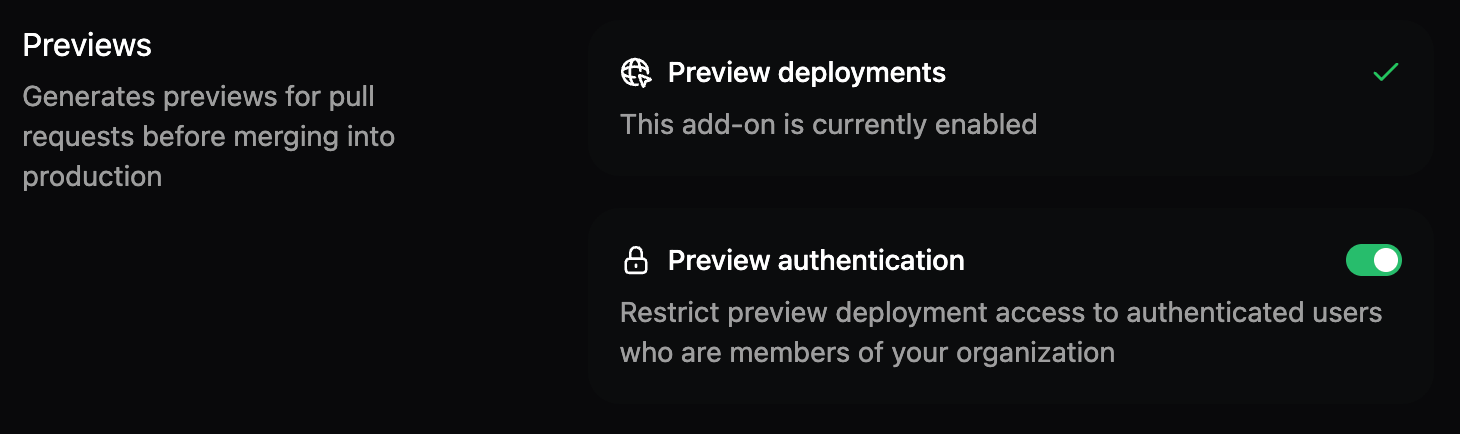
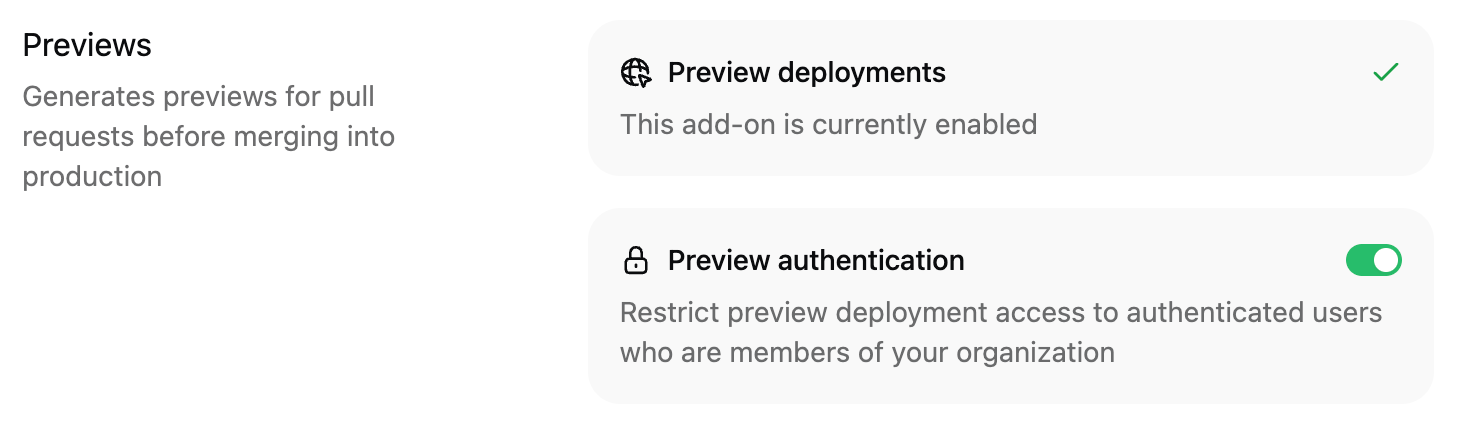
将预览访问权限限制为 Mintlify 组织中的已认证成员。

1. 在控制台的 [附加组件](https://dashboard.mintlify.com/products/addons) 页面，进入 **Previews** 部分。
2. 点击 **Preview authentication** 开关以启用或禁用预览认证。
<Frame>
  <img src="https://mintcdn.com/mintlify-docs-automation-github-pr-review/QBTK2PGeDDpdhDBw/images/previews/preview-auth-light.png?fit=max&auto=format&n=QBTK2PGeDDpdhDBw&q=85&s=88ea15092ae64e7d8fa57c0deb2a2af1" alt="附加组件页面中的预览认证开关" className="block dark:hidden" width="1460" height="434" data-path="images/previews/preview-auth-light.png" />

  <img src="https://mintcdn.com/mintlify-docs-automation-github-pr-review/QBTK2PGeDDpdhDBw/images/previews/preview-auth-dark.png?fit=max&auto=format&n=QBTK2PGeDDpdhDBw&q=85&s=eab0092b5a08628864ff6abe337d0131" alt="附加组件页面中的预览认证开关" className="hidden dark:block" width="1460" height="434" data-path="images/previews/preview-auth-dark.png" />
</Frame>

<div id="password-protect-an-individual-preview">
  ### 为单个预览设置密码保护
</div>

<Info>
  密码保护的预览适用于 [Enterprise 方案](https://mintlify.com/pricing?ref=preview-deployments)。
</Info>

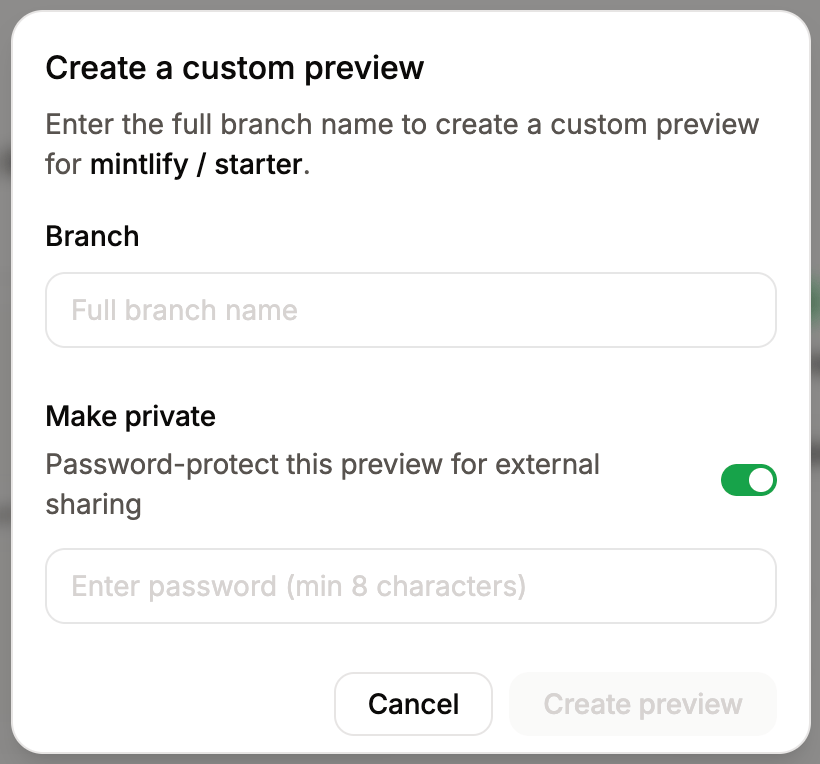
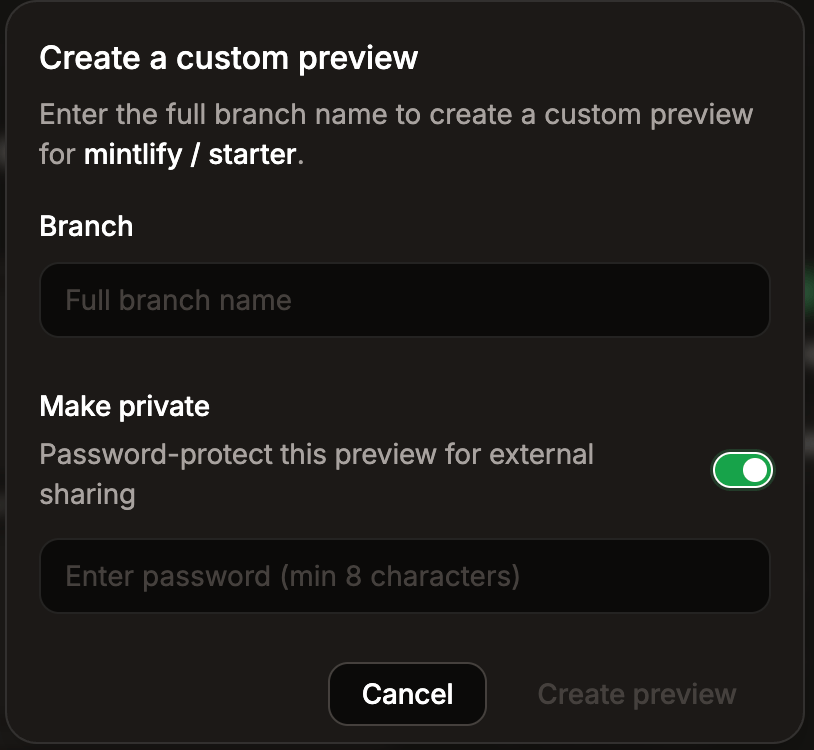
为特定预览设置密码保护，以便与外部审阅者共享，而无需将他们添加到你的 Mintlify 组织中。此选项在创建手动预览时可用，当你的部署已启用组织身份验证时不会显示。

1. 前往你的[控制台](https://dashboard.mintlify.com/)。
2. 选择 **Previews**。
3. 选择 **Create custom preview**。
4. 输入要预览的 branch 名称。
5. 开启 **Make private** 并输入密码。密码必须至少为 8 个字符。
<Frame>
  <img src="https://mintcdn.com/mintlify-docs-automation-github-pr-review/QBTK2PGeDDpdhDBw/images/previews/private-preview-light.png?fit=max&auto=format&n=QBTK2PGeDDpdhDBw&q=85&s=1ce1fcf395e53e48d878fd9c0465b5e2" alt="创建自定义预览模态框，其中 Make private 开关已启用并显示密码字段。" className="block dark:hidden" width="820" height="764" data-path="images/previews/private-preview-light.png" />

  <img src="https://mintcdn.com/mintlify-docs-automation-github-pr-review/QBTK2PGeDDpdhDBw/images/previews/private-preview-dark.png?fit=max&auto=format&n=QBTK2PGeDDpdhDBw&q=85&s=34a0a6fe338673009d2c35e258c5a062" alt="创建自定义预览模态框，其中 Make private 开关已启用并显示密码字段。" className="hidden dark:block" width="814" height="750" data-path="images/previews/private-preview-dark.png" />
</Frame>

6. 选择 **Create preview**。

<div id="troubleshooting-preview-deployments">
  ## 预览部署故障排查
</div>

如果预览部署失败，可以尝试以下故障排查步骤。

* **查看构建日志**：在你的[控制台](https://dashboard.mintlify.com/)中进入 **Previews**，并点击失败的预览。部署日志会显示导致失败的错误。
* **检查配置**：
  * `docs.json` 语法无效
  * 在导航中引用的文件路径缺失或不正确
  * MDX 文件中的 frontmatter 无效
  * 图片链接失效或缺少图片文件
* **在本地验证**：在本地运行 `mint dev`，在推送到存储库之前先发现构建错误。
* **检查最近的更改**：查看当前分支中最近的提交，以确认哪些更改导致构建失败。