> ## Documentation Index
> Fetch the complete documentation index at: https://mintlify-docs-automation-github-pr-review.mintlify.site/llms.txt
> Use this file to discover all available pages before exploring further.

# 构建应用内助手

> 构建并嵌入一个应用内文档助手，使用来自你的 Mintlify 文档站点的引用信息回答用户问题。

<div id="what-you-will-build">
  ## 你将构建的内容
</div>

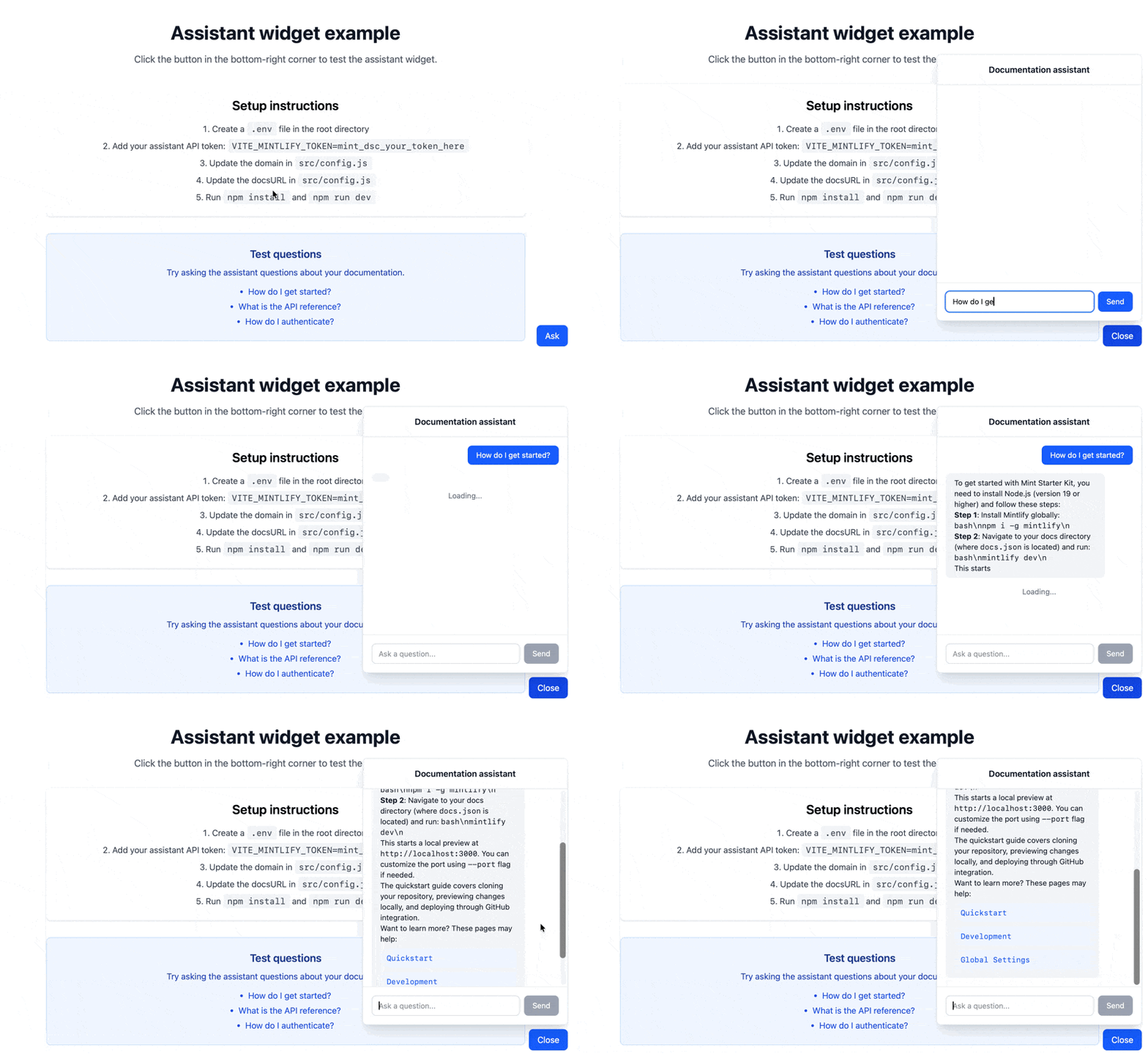
一个可复用的小部件，可将[AI 助手](/zh/assistant/index)直接嵌入到你的应用中。该小部件提供：

* 浮动按钮，点击即可打开聊天面板
* 基于你的文档信息的实时流式回复
* 支持 Markdown 的消息渲染

用户无需离开你的应用即可通过该小部件获取产品帮助。

<Frame>
  <img src="https://mintcdn.com/mintlify-docs-automation-github-pr-review/rWRx8_B8QDywypwF/images/assistant/assistant-embed-demo.gif?s=24bd4aeb7e7c9750e675d80027d9432b" alt="演示打开助手小部件，用户输入“如何开始？”，随后助手作出回应。" width="800" height="491" data-path="images/assistant/assistant-embed-demo.gif" />
</Frame>

<div id="prerequisites">
  ## 先决条件
</div>

* 已启用 Mintlify AI 助手
* 你的 domain 名称，它位于控制台 URL 的末尾。例如，如果你的控制台 URL 是 `https://dashboard.mintlify.com/org-name/domain-name`，你的 domain 名称就是 `domain-name`
* 一个 [AI 助手 API key](https://dashboard.mintlify.com/settings/organization/api-keys)
* 已安装 Node.js v18 或更高版本及 npm
* 基础的 React 知识

<div id="get-your-assistant-api-key">
  ### 获取你的 AI 助手 API key
</div>

1. 在控制台中前往 [API keys](https://dashboard.mintlify.com/settings/organization/api-keys) 页面。
2. 点击 **Create Assistant API Key**。
3. 复制 AI 助手 API key（以 `mint_dsc_` 开头）并妥善保存。

<Note>
  AI 助手 API key 是一个可在前端代码中使用的公共令牌。使用该令牌的调用将计入你套餐的消息配额，并可能产生超额费用。
</Note>

<div id="set-up-the-example">
  ## 设置示例
</div>

克隆[示例存储库](https://github.com/mintlify/assistant-embed-example)，并按需进行自定义。

<Steps>
  <Step title="克隆存储库">
    ```bash theme={null}
    git clone https://github.com/mintlify/assistant-embed-example.git
    cd assistant-embed-example
    ```
  </Step>

  <Step title="选择你的开发工具">
    该存储库包含 Next.js 和 Vite 示例。选择你更习惯使用的工具。

    <CodeGroup>
      ```bash title="Next.js" theme={null}
      cd nextjs
      npm install
      ```

      ```bash title="Vite" theme={null}
      cd vite
      npm install
      ```
    </CodeGroup>
  </Step>

  <Step title="配置你的项目">
    打开 `src/config.js`，并填入你的 Mintlify 项目信息。

    ```js src/config.js theme={null}
    export const ASSISTANT_CONFIG = {
      domain: 'your-domain',
      docsURL: 'https://yourdocs.mintlify.site',
    };
    ```

    将以下内容替换为你的实际信息：

    * 将 `your-domain` 替换为你在控制台 URL 末尾看到的 Mintlify 项目 domain。
    * 将 `https://yourdocs.mintlify.site` 替换为你的文档实际 URL。
  </Step>

  <Step title="添加你的 API 令牌">
    在项目根目录创建一个 `.env` 文件。

    ```bash .env theme={null}
    VITE_MINTLIFY_TOKEN=mint_dsc_your_token_here
    ```

    将 `mint_dsc_your_token_here` 替换为你的 AI 助手 API key。
  </Step>

  <Step title="启动开发服务器">
    ```bash theme={null}
    npm run dev
    ```

    在浏览器中打开你的应用，点击 **Ask** 按钮以打开 AI 助手挂件。
  </Step>
</Steps>

<div id="customization-ideas">
  ## 自定义思路与示例
</div>

<div id="source-citations">
  ### 来源引注
</div>

从 AI 助手的回复中提取并显示出处：

```jsx theme={null}
const extractSources = (parts) => {
  return parts
    ?.filter(p => p.type === 'tool-invocation' && p.toolInvocation?.toolName === 'search')
    .flatMap(p => p.toolInvocation?.result || [])
    .map(source => ({
      url: source.url || source.path,
      title: source.metadata?.title || source.path,
    })) || [];
};

// In your message rendering:
{messages.map((message) => {
  const sources = message.role === 'assistant' ? extractSources(message.parts) : [];
  return (
    <div key={message.id}>
      {/* 消息内容 */}
      {sources.length > 0 && (
        <div className="mt-2 text-xs">
          <p className="font-semibold">来源：</p>
          {sources.map((s, i) => (
            <a key={i} href={s.url} target="_blank" rel="noopener noreferrer" className="text-blue-600">
              {s.title}
            </a>
          ))}
        </div>
      )}
    </div>
  );
})}
```

<div id="track-conversation-thread-ids">
  ### 跟踪会话线程
</div>

存储线程 ID 和线程密钥，以在不同会话中保留对话历史。

当用户创建新的会话线程时，服务器会在响应头中返回两个值：

* `X-Thread-Id`：线程标识符
* `X-Thread-Key`：线程的密钥（仅在创建线程时返回一次）

你必须在第一次响应时捕获并持久化这两个值。在之后的每条消息中，都需要在请求体中同时包含 `threadId` 和 `threadKey`。如果你发送了 `threadId` 但没有附带对应的 `threadKey`，服务器将返回 `404` 错误。

<Warning>
  你必须立即存储 `X-Thread-Key` 响应头。服务器仅在创建新线程时返回该值，之后无法再次获取。
</Warning>

```jsx theme={null}
import { useState, useEffect } from 'react';

export function AssistantWidget({ domain, docsURL }) {
  const [threadId, setThreadId] = useState(null);
  const [threadKey, setThreadKey] = useState(null);

  useEffect(() => {
    // 从 localStorage 中获取已保存的线程 ID 和密钥
    const savedId = localStorage.getItem('assistant-thread-id');
    const savedKey = localStorage.getItem('assistant-thread-key');
    if (savedId && savedKey) {
      setThreadId(savedId);
      setThreadKey(savedKey);
    }
  }, []);

  const { messages, input, handleInputChange, handleSubmit, isLoading } = useChat({
    api: `https://api.mintlify.com/discovery/v1/assistant/${domain}/message`,
    headers: {
      'Authorization': `Bearer ${import.meta.env.VITE_MINTLIFY_TOKEN}`,
    },
    body: {
      fp: 'anonymous',
      retrievalPageSize: 5,
      ...(threadId && { threadId }),
      ...(threadKey && { threadKey }),
    },
    streamProtocol: 'data',
    sendExtraMessageFields: true,
    fetch: async (url, options) => {
      const response = await fetch(url, options);
      const newThreadId = response.headers.get('x-thread-id');
      const newThreadKey = response.headers.get('x-thread-key');
      if (newThreadId) {
        setThreadId(newThreadId);
        localStorage.setItem('assistant-thread-id', newThreadId);
      }
      if (newThreadKey) {
        setThreadKey(newThreadKey);
        localStorage.setItem('assistant-thread-key', newThreadKey);
      }
      return response;
    },
  });

  // ... 组件其余部分
}
```

<div id="add-keyboard-shortcuts">
  ### 添加键盘快捷键
</div>

允许用户通过键盘快捷键打开组件并提交消息：

```jsx theme={null}
useEffect(() => {
  const handleKeyDown = (e) => {
    // Cmd/Ctrl + Shift + I 切换 AI 助手
    if ((e.metaKey || e.ctrlKey) && e.shiftKey && e.key === 'I') {
      e.preventDefault();
      setIsOpen((prev) => !prev);
    }

    // Enter(当 AI 助手获得焦点时)提交
    if (e.key === 'Enter' && !e.shiftKey && document.activeElement.id === 'assistant-input') {
      e.preventDefault();
      handleSubmit();
    }
  };

  window.addEventListener('keydown', handleKeyDown);
  return () => window.removeEventListener('keydown', handleKeyDown);
}, [handleSubmit]);
```